
How to Add Bundle Labels to Shopify Packing Slips
When using the Cart Transformation feature, bundles are broken down into their individual products after checkout. This helps with inventory management and fulfillment, but it can make packing slips harder to read because the original bundle name is no longer displayed.
To make packing slips clearer for your fulfillment team, you can add labels that show which products belong to a bundle. Items that are not included in a bundle will be listed under the bundle section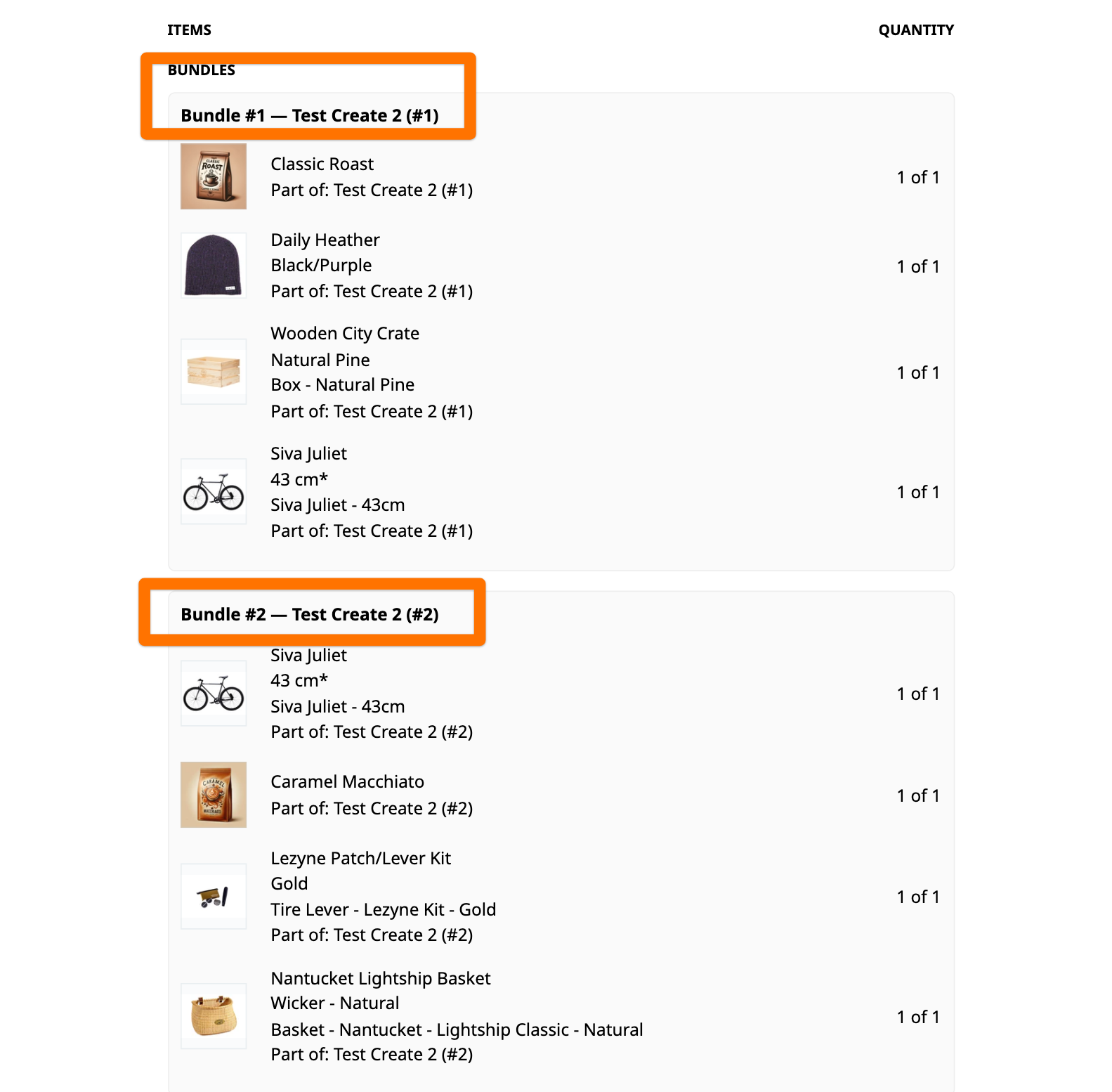
Using Our Packing Slip GPT
We've made this process much easier. Instead of manually editing your packing slip template, simply:
- Open Shopify Admin.
- Navigate to Settings → Shipping and Delivery → Packing Slips.
- Open your current packing slip template.
- Copy the entire template code.
- Open our custom GPT:
- Paste your template code into the GPT and ask it to add bundle labels.
- Copy the modified template generated by the GPT.
- Replace the contents of your Shopify packing slip template with the updated version.
- Save your changes.
Testing Your Updated Packing Slip
After saving the updated template:
- Refresh the order details page
- Generate a new packing slip.
- Verify that bundle products are clearly labeled on the packing slip.
Additional GPT Tools
We also provide the following GPTs to help customize your Shopify documents: BYOB - Packing Slip Customizer
Adds bundle labels and updates packing slip templates to better display bundle information: BYOB - Invoice Bundle Labeler
Adds bundle information to invoice templates so customers and fulfillment teams can easily identify bundled products.
If you encounter any issues or need assistance customizing your template, please contact our support team and we'll be happy to help.